Interactive Computing Resources
Overview
Teaching: 15 min
Exercises: 0 minQuestions
Where can I develop and test my code
Objectives
Learn about interactive computing for DUNE
Table of Contents for 01.7_GeneralPurposeVMs
- Interactive resources at Fermilab
- Interactive resources at CERN
- Remote connections
- Be mindful of computer security
Workshop Interactive Resources at Fermilab Video from September 2026
Link to Full Unicamp 2026 Video Playlist
Interactive resources at Fermilab
Fermilab provides DUNE with 18 virtual machines that are accessible to any DUNE collaborator with a Fermilab Computing account - see setup for instruction on getting an account.
16 General Purpose Virtual Machines - gpvms
There are 16 dunegpvm01-dunegpvm16 for everyday use which have 12 GB of memory and 4 CPU’s. These are for developing and testing code, for submitting batch jobs and for running small analysis jobs. Note that the number of gpvms is likely to decrease in the future as we move to a smaller number of more powerful gpvms.
The default OS on the gpvms is Alma 9; if you need SL7, use the Apptainers described in SL7 setup.
They have access to your home area (/nashome/firstletterofusername/username), /cvmfs/ and the /exp/dune/data, /exp/dune/app and /pnfs/dune. There is also a small /tmp area.
Some resources (such as batch systems and /pnfs/) require “tokens” to access. See the tokens page for more information.
Etiquette Note
DUNE interactive resources are shared with all of your collaborators.
It is considered quite rude to run large (> 2) numbers of analysis jobs on a shared gpvm. If you need to run more than 1 or 2, learn to use the justin batch system.
You can find out the load on the gpvms here
2 build machines
Two specially configured interactive machines have been put in place explicitly to rapidly compile and build large software stacks. Nodes dunebuild02 and dunebuild03 have 90GB of memory and 24 CPUs each. These systems are for building code, not running or testing code.
The /exp/dune/app and /exp/dune/data areas are mounted on the build machines so that you can access your code but /pnfs/ is not.
Elastic Analysis Facility
For sophisticated data analysis that needs more memory (i.e. data analysis rather than reconstruction) and/or GPU’s, the Elastic Analysis Facility may be what you need. The EAF supports Jupyter notebooks and has access to GPU’s including NVidia A100’s. The EAF requires using the Fermilab VPN or setting up a proxy.
Interactive resources at CERN
Users with CERN credentials can also use lxplus. See lxplus.cern.ch for instructions. There are instructions for using lxplus to do development similar to the gpvms in the CERN setup section of these tutorials.
Remote connections
People wishing to use remote connections via VSCode or tunnels for virtual desktops shall follow the instruction in the DUNE wiki linked below.
Using tigervnc to get X running on a gpvm
Using VSCode on a gpvm without running all your extensions
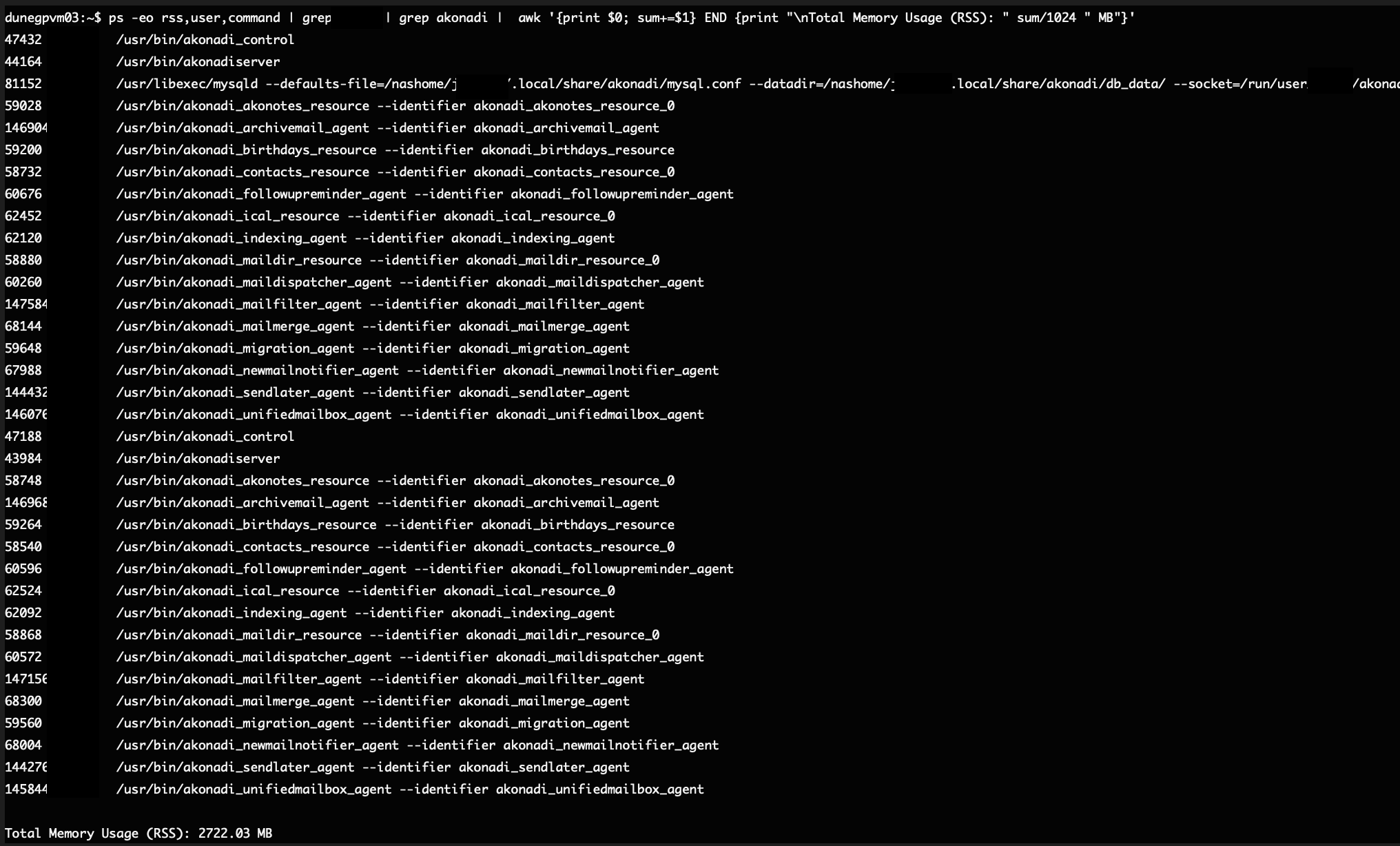
Do not use other VNC clients that set up a full desktop manager (e.g. Ubuntu/gnome WM, etc ) and only use lightweight VNCs. There are limited resources on the GPVMs. We don’t need N instances of your calendar app running on our development machines. Especially as they tend to stay around for weeks, and in some cases, have been observed to consume over 2 GB of memory!
It is also important to disable a number of the background processes related to virtual desktops. There are detailed instructions on the DUNE Wiki:
Don’t believe this is a problem? Check out the documented memory usage on a dunegpvm from August 2026:
Be mindful of computer security
Most of our standard physics code is vetted and tested and is available from cvmfs on all of these machines. Be very cautious about downloading and installing untested packages from the internet. Major software sources such as PyPI and conda-forge monitor for malicious code but can’t stop everything. And even legit software can have unexpected resource needs that may not be workable on our systems.
Installation of rogue software can result in you, or worse, the collaboration losing computing privileges.
As a reminder, the Fermilab Policy on Computing Can be Found here. The CERN computing rules are here.
Key Points
These are shared machines! Be nice!