Frontier / ConDB2 Infrastructure Runbook
Part of the ProtoDUNE ConDB2 docs: FermiCloud setup, Frontier "launchpad" server, Squid reverse proxy, local Squid cache, the manual upstream client build used for stack bring-up, and end-to-end query testing.
This repository contains the code and documentation related to the installation, configuration, and testing of a Frontier (server, client, cache) connection to a ConDB2 API server backend.
FermiCloud Instance Setup
Getting FermiCloud Access
- Submit a ticket for Access to FermiCloud
- FermiCloud OpenStack Docs
Connecting to the FermiCloud OpenStack Dashboard
- You will need to either be on the local FNAL network or use a remote VPN (
vpn.fnal.gov) connection. - Follow the instructions appropriate to the system you are working on.
- This requires installing Fermilab CA certificates.
- The remote VPN connection requires that use the RSA Authenticator app to get a token. This requires creating a ticket to create a PIN to authenticate.
- You will also need to use your FNAL Services credentials to connect to the VPN.
- FermiCloud OpenStack Dashboard
- Dashboard authentication requires your FNAL Services credentials.
Creating a New FermiCloud Instance
- Note: FermiCloud instances are meant only for development and testing purposes. Production workloads are not supported.
- Follow the How to Start a New FermiCloud Instance.
- For the "Source" image choose the most recently updated AlmaLinux 9 version with NFS.
- In "Flavor" select the 2 VCPU / 4GB RAM / 30GB option. Note: This configuration mirrors Dave Dykstra's Frontier FermiCloud instance.
- Select
ipv4for the "Network" option. This makes instance access and network configuration easier.
Accessing the Newly Created Instance
- The
mclymer-frontier-testinstance URL:fermicloud725.fnal.gov - Make sure that you have Kerberos configured for SSH access to your instance.
- Follow the instructions to generate a Kerberos ticket.
- If remote, you will need to be connected to the VPN to
sshinto you FermiCloud instance. - To update system libraries and install software you will need root access permissions.
sudodoes not work on FermiCloud VMs.- SSH into the VM directly for root access:
ssh -l root fermicloud725.fnal.gov - There was an issue with being added to the correct group for root access. Needed
/root/.k5loginmodified to give me access.
Frontier "Launchpad" Server Setup on FermiCloud Test Instance
Relevant Documentation
Installation
- Follow the above linked installation document.
- Do not make any of the changes detailed in the "Preparation" section.
- Follow all of the steps in the "Installation" section, but substitute the
dnfcommand in foryum. - Before you run
[root@fermicloud725 ~]# systemctl enable frontier-tomcatdo the following: - As root user, you need to install
initscriptsandchkconfig.
Configuration
- Add the following configuration to
/etc/tomcat/servlets.conf - Before you run
[root@fermicloud725 ~]# systemctl start frontier-tomcat: - You will need to run -
ln -s /etc/rc.d/init.d /etc/init.dto make sure that it can find the correct startup script. - The
frontier-tomcatinstallation creates thetomcatuser and group, but not the associated/homedirectory. -
Create the required directory:
-
A network security group needs to be created to allow IPv4 and IPv6 ingress access to port 8080.
- This allows for requests to be handled by the
frontier-tomcatservlet. - In the OpenStack dashboard go to
Network > Security Groups.- Click the "Create Security Group" button.
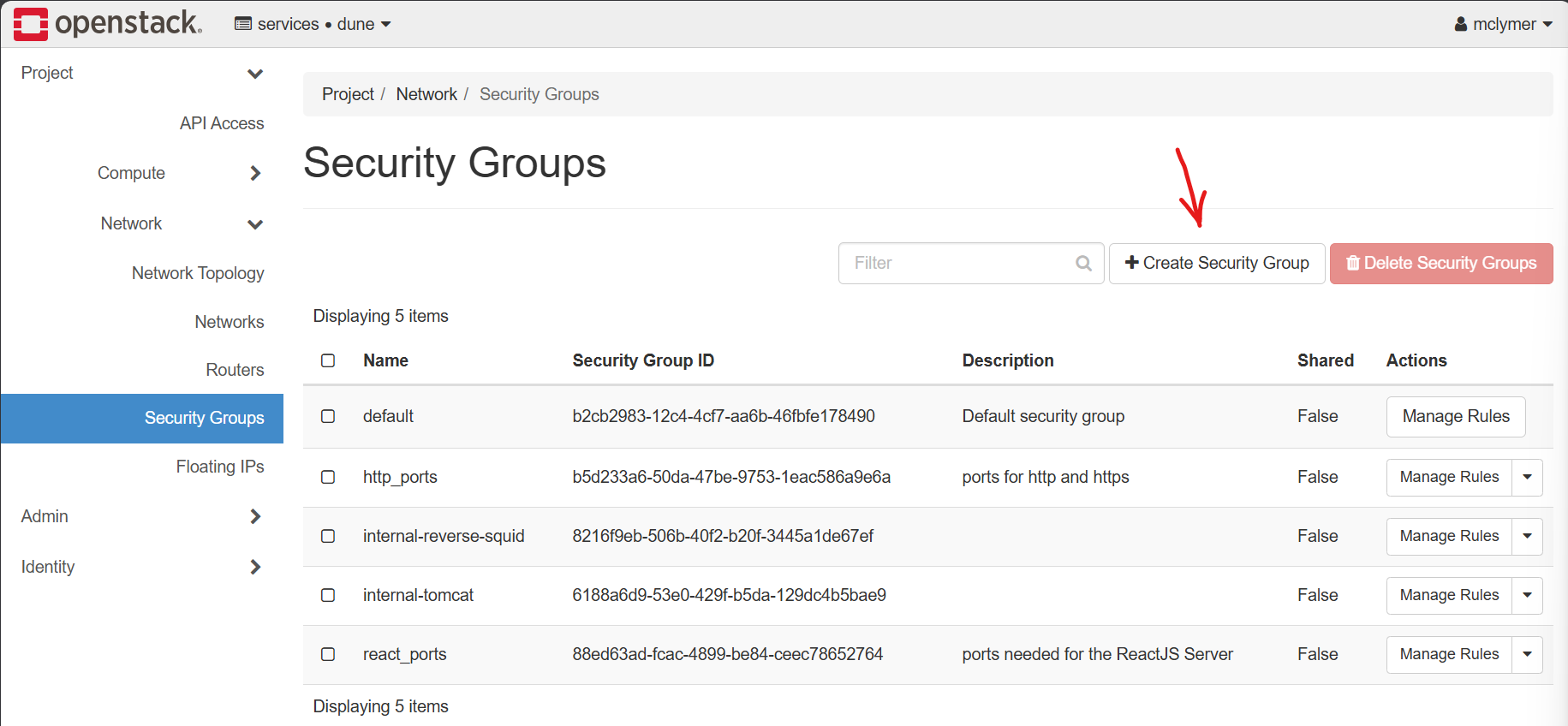
- Give the group a name and optional description. We used
internal-tomcat. - Once the security group has been created, delete the "Egress" rules.
- Then add two "Ingress" rules; one for IPv4 and one for IPv6.
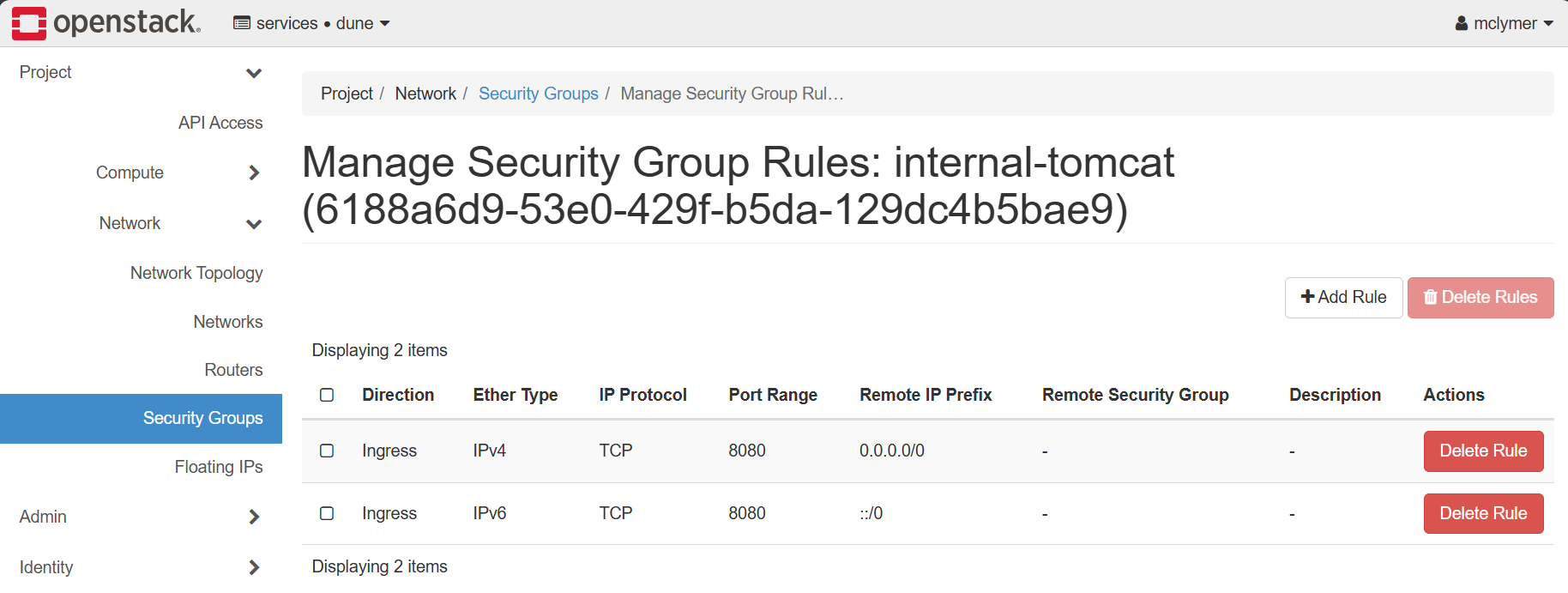
- Click the "Create Security Group" button.
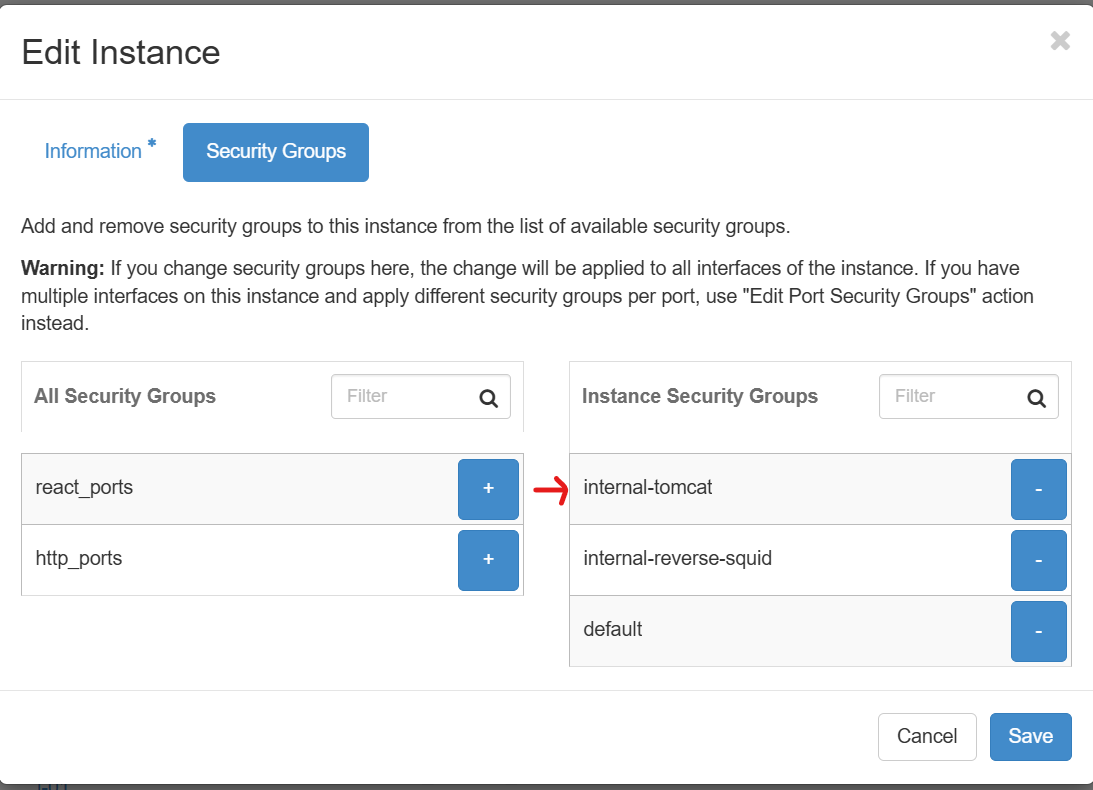
- This security group now needs to be added to your FermiCloud instance.
- Find your instance on the "Instances" view.
- Select "Edit Security Groups" from the "Actions" dropdown menu.
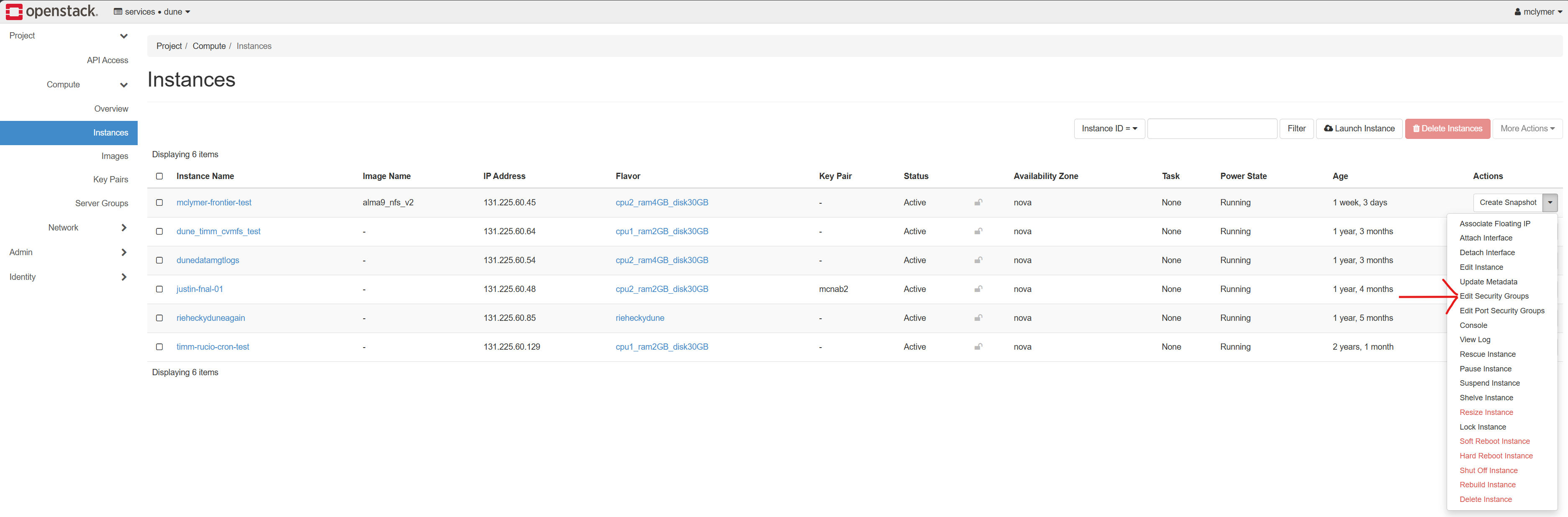
- Add the security group to the list of "Instance Security Groups and save it.
Connection Testing
- Test the connection between your
frontier-tomcatsetup and the ConDB2 API backend. - Note: You will need to be on the FNAL network to run the test. See the above VPN connection details.
- The server should be listening on port 8080 at the domain name created for your FermiCloud instance.
- In a terminal on a separate system, run a query to the ConDB2 API, proxied by the connected Frontier server.
$ curl -H "Accept: application/xml" -H "X-Frontier-Id: test" "http://fermicloud725.fnal.gov:8080/dune_runcon_prod/Frontier/type=frontier_file:1:DEFAULT&encoding=BLOB&p1=get%253ffolder%253dpdunesp.test%2526t%253d23300"
<?xml version="1.0" encoding="US-ASCII"?>
<!DOCTYPE frontier SYSTEM "http://frontier.fnal.gov/frontier.dtd">
<frontier version="3.42" xmlversion="1.0">
 <transaction payloads="1">
  <payload type="frontier_file" version="1" encoding="BLOB">
   <data>BgAAAM9jaGFubmVsLHR2LHRyLGRhdGFfdHlwZSx1cGxvYWRfdGltZSxzdGFydF90aW1lLHN0b3Bf
dGltZSxydW5fdHlwZSxzb2Z0d2FyZV92ZXJzaW9uLGJ1ZmZlcixhY19jb3VwbGUKMCwyMzMwMC4w
LDE3MDAwNjc0MDYuOTcyODkwMSxucDAyX2NvbGRib3gsMTcwMDA2NzQwNi45NzI4NjQ2LDE3MDAw
Njc4MDMuMCxOb25lLFRFU1QsZmQtdjQuMi4wLWM2LE5vbmUsTm9uZQoH</data>
   <quality error="0" md5="3437dff6878ab524247531f6742ee8f9" records="1" full_size="213"/>
  </payload>
 </transaction>
</frontier>
Frontier Squid Reverse Proxy Setup on FermiCloud Test Instance
- The relevant documentation can be found here: Installing Squid for a Frontier launchpad
Set the User Group ID
- The
frontier-tomcatinstall was done with thetomcatuser and group IDs. - The docs recommend that the same user and group ID be used.
Squid Reverse Proxy Installation
- Install
frontier-squid. - Set it to start at boot time.
Configuration
- Follow the configuration instructions from the documentation, but also edit
/etc/squid/customize.shto reflect the following.#!/usr/bin/bash # # Edit customize.sh as you wish to customize squid.conf. # It will not be overwritten by upgrades. # See customhelps.awk for information on predefined edit functions. # In order to test changes to this, run this to regenerate squid.conf: # /usr/libexec/squid/frontier-squid # and to reload the changes into a running squid use # systemctl reload frontier-squid # Avoid single quotes in the awk source or you have to protect them from bash. # HOSTNAME=`hostname` awk --file `dirname $0`/customhelps.awk --source '{ setoption("acl NET_LOCAL src", "10.0.0.0/8 172.16.0.0/12 192.168.0.0/16 fc00::/7 fe80::/10") setoption("cache_mem", "128 MB") setoptionparameter("cache_dir", 3, "10000") setoption("http_port", "8000 accel defaultsite=127.0.0.1:8080 no-vhost") setoption("cache_peer", "127.0.0.1 parent 8080 0 no-query originserver name=tomcat") commentout("acl NET_LOCAL src") commentout("http_access allow NET_LOCAL") insertline("^http_access deny all", "http_access allow to_localhost") setoption("read_ahead_gap", "200 MB") setoption("shutdown_lifetime", "0 seconds") print }'
Connection Testing
- Test the connection between your
frontier-squidreverse proxy setup and thefrontier-tomcatserver. - Note: You will need to be on the FNAL network to run the test. See the above VPN connection details.
- The reverse proxy should be listening on port 8000 at the domain name created for your FermiCloud instance.
- In a terminal on a separate system, run a query to the ConDB2 API, proxied by the connected Frontier server.
$ curl -H "Accept: application/xml" -H "X-Frontier-Id: test" "http://fermicloud725.fnal.gov:8000/dune_runcon_prod/Frontier/type=frontier_file:1:DEFAULT&encoding=BLOB&p1=get%253ffolder%253dpdunesp.test%2526t%253d23300"
<?xml version="1.0" encoding="US-ASCII"?>
<!DOCTYPE frontier SYSTEM "http://frontier.fnal.gov/frontier.dtd">
<frontier version="3.42" xmlversion="1.0">
 <transaction payloads="1">
  <payload type="frontier_file" version="1" encoding="BLOB">
   <data>BgAAAM9jaGFubmVsLHR2LHRyLGRhdGFfdHlwZSx1cGxvYWRfdGltZSxzdGFydF90aW1lLHN0b3Bf
dGltZSxydW5fdHlwZSxzb2Z0d2FyZV92ZXJzaW9uLGJ1ZmZlcixhY19jb3VwbGUKMCwyMzMwMC4w
LDE3MDAwNjc0MDYuOTcyODkwMSxucDAyX2NvbGRib3gsMTcwMDA2NzQwNi45NzI4NjQ2LDE3MDAw
Njc4MDMuMCxOb25lLFRFU1QsZmQtdjQuMi4wLWM2LE5vbmUsTm9uZQoH</data>
   <quality error="0" md5="3437dff6878ab524247531f6742ee8f9" records="1" full_size="213"/>
  </payload>
 </transaction>
</frontier>
Frontier Squid Cache Setup on a Local Workstation
Relevant Documentation
Installation
- Follow the above linked installation document.
- Do not make any of the changes detailed in the "Preparation" section.
Configuration
- Follow the configuration instructions from the documentation, including Personal squid on a desktop/laptop
, but also edit
/etc/squid/customize.shto reflect the following.#!/usr/bin/bash # # Edit customize.sh as you wish to customize squid.conf. # It will not be overwritten by upgrades. # See customhelps.awk for information on predefined edit functions. # In order to test changes to this, run this to regenerate squid.conf: # /usr/libexec/squid/frontier-squid # and to reload the changes into a running squid use # systemctl reload frontier-squid # Avoid single quotes in the awk source or you have to protect them from bash. # awk --file `dirname $0`/customhelps.awk --source '{ setoption("acl NET_LOCAL src", "127.0.0.1/32") setoption("cache_mem", "256 MB") setoptionparameter("cache_dir", 3, "10000") print }'
Testing the Cache
- As a first test, follow the Testing the installation instructions.
- Make sure to replace
MY.SQUID.HOSTwithlocalhostfor the firstexportcommand. - If you run the
wgetcommand twice as instructed, you should see something like the following in/var/log/squid/access.log. - Test the connection between your local
frontier-squidcache installation and the Frontier Launchpad server that you set up previously. - Note: You will need to be on the FNAL network to run the test. See the above VPN connection details.
- The server should be listening on port 8000 at the domain name created for your FermiCloud instance.
- In a terminal on a the local system, run a query to the ConDB2 API. Do this twice to see the cache miss and then hit.
$ curl -H "Accept: application/xml" -H "X-Frontier-Id: test" "http://fermicloud725.fnal.gov:8000/dune_runcon_prod/Frontier/type=frontier_file:1:DEFAULT&encoding=BLOB&p1=get%253ffolder%253dpdunesp.test%2526t%253d23300" <?xml version="1.0" encoding="US-ASCII"?> <!DOCTYPE frontier SYSTEM "http://frontier.fnal.gov/frontier.dtd"> <frontier version="3.42" xmlversion="1.0"> <transaction payloads="1"> <payload type="frontier_file" version="1" encoding="BLOB"> <data>BgAAAM9jaGFubmVsLHR2LHRyLGRhdGFfdHlwZSx1cGxvYWRfdGltZSxzdGFydF90aW1lLHN0b3Bf dGltZSxydW5fdHlwZSxzb2Z0d2FyZV92ZXJzaW9uLGJ1ZmZlcixhY19jb3VwbGUKMCwyMzMwMC4w LDE3MDAwNjc0MDYuOTcyODkwMSxucDAyX2NvbGRib3gsMTcwMDA2NzQwNi45NzI4NjQ2LDE3MDAw Njc4MDMuMCxOb25lLFRFU1QsZmQtdjQuMi4wLWM2LE5vbmUsTm9uZQoH</data> <quality error="0" md5="3437dff6878ab524247531f6742ee8f9" records="1" full_size="213"/> </payload> </transaction> </frontier> - You should now see something like the following in
/var/log/squid/access.log.127.0.0.1 - - [03/Dec/2025:14:00:05.148 -0700] "GET http://fermicloud725.fnal.gov:8000/dune_runcon_prod/Frontier/type=frontier_file:1:DEFAULT&encoding=BLOB&p1=get%253ffolder%253dpdunesp.test%2526t%253d23300 HTTP/1.1" 200 1090 TCP_MISS:HIER_DIRECT 370 "test -" "-" "curl/7.76.1" 127.0.0.1 - - [03/Dec/2025:14:00:26.785 -0700] "GET http://fermicloud725.fnal.gov:8000/dune_runcon_prod/Frontier/type=frontier_file:1:DEFAULT&encoding=BLOB&p1=get%253ffolder%253dpdunesp.test%2526t%253d23300 HTTP/1.1" 200 1091 TCP_HIT:HIER_NONE 0 "test -" "-" "curl/7.76.1"
## Local Frontier Client Build and Basic Query Testing
Note: This section describes the manual upstream build used for stack bring-up. The Python client packages do NOT use this flow — see the Installation for the automated, pinned build that produces pd-cds-api-bin.
Note: The Frontier client code build was done using GCC 14.2.1 on an AlmaLinux 9 system. The following reflects the system configuration needed to build the code.
Local Client Code Build
- Follow the instructions found in Frontier Client Usage.
- Steps that deviate from the above documentation are noted below.
- In a local working directory fetch the latest Frontier code:
- Install the following build dependencies (if not already installed):
- There is not a prebuilt Pacparser package for RHEL / AL9.
- You will need to download the source, then build and install it locally.
- To build it with GCC 14+, you will need to manually patch the
/<LOCALLY_CLONED_WORKING_DIR>/src/spidermonkey/js/src/jsapi.caccording to the instructions found here. - Build and install locally:
- Go to the Frontier client code directory and build the client.
Client Connection and ConDB2 API Query Testing
- Now that you have the client code built locally, you can test ConDB2 API queries through the entire Frontier stack that you set up in previous steps:
- From the local Frontier client source directory, use the
fn-filegetCLI. - Make sure that
$LD_LIBRARY_PATHincludes the Frontier client directory. - Test the CLI to make sure it executes correctly.
- Test a ConDB2 API query with
fn-fileget. Note: This requires a FNAL VPN connection.$ ./fn-fileget -c "(serverurl=http://fermicloud725.fnal.gov:8000/dune_runcon_prod)(proxyurl=http://localhost:3128)" "get?folder=pdunesp.run_conditionstest&t=28650" 753 bytes written to get?folder=pdunesp.run_conditionstest&t=28650- You should see the cache miss / hit in
/var/log/squid/access.log.127.0.0.1 - - [17/Dec/2025:10:59:41.942 -0700] "GET http://fermicloud725.fnal.gov:8000/dune_runcon_prod/Frontier/type=frontier_file:1:DEFAULT&encoding=BLOB&p1=get%253ffolder%253dpdunesp.run_conditionstest%2526t%253d28650 HTTP/1.0" 200 1847 TCP_MISS:HIER_DIRECT 355 "client 2.10.2 208346 mike(1000) -" "-" "-" 127.0.0.1 - - [17/Dec/2025:11:01:19.396 -0700] "GET http://fermicloud725.fnal.gov:8000/dune_runcon_prod/Frontier/type=frontier_file:1:DEFAULT&encoding=BLOB&p1=get%253ffolder%253dpdunesp.run_conditionstest%2526t%253d28650 HTTP/1.0" 200 1848 TCP_HIT:HIER_NONE 0 "client 2.10.2 208792 mike(1000) -" "-" "-"
- You should see the cache miss / hit in
- The response from the above query will dump a CSV file with a name reflecting the
filepaththat you provided in the CLI call; E.g.,'get?folder=pdunesp.run_conditionstest&t=28650'.- Change the filename to
<something>.csv. - Open the file and you should see the query results in CSV format.
- Change the filename to